


HazeOver – Distraktionsdæmper til Mac
Skru ned for distraktioner og fokuser på din nuværende opgave
For mange vinduer at håndtere? Kom du til at skrive i det forkerte vindue? Stort display? Eller mister du nogle gange overblikket med flere skærme? HazeOver er til dig! Denne app fremhæver automatisk det aktive vindue ved at dæmpe alle baggrunds vinduerne.
Nuværende version kræver macOS Ventura 13 eller en nyere version. Se andre versioner. Kompatibel med macOS 27 Golden Gate. Gratis prøveversion
 Prøv med Setapp
Sådan øger du produktiviteten på Mac med HazeOver
- Hjælp dig selv med at fokusere på én ting ad gangen. Især hvis du nemt lader dig aflede.
- Brug mindre tid på at håndtere vinduer. Rodet vil ikke genere dig længere.
Intet behov for at minimere, lukke eller skjule vinduer for at holde dit arbejdsområde pænt og ryddeligt. - Med ekstra kontrast ser du straks, hvilket vindue der er aktivt.
Skriv, indsæt og brug tastaturgenveje uden at være i tvivl. - Har du et større display? Så giver fuldskærm måske mindre mening.
HazeOver hjælper dig med at undgå at føle dig overvældet af for mange vinduer. - Flere skærme? Se hvilken skærm der er aktiv, eller fremhæv vinduer på hver skærm.
- Hjælper med at mindske øjenbelastning og den samlede blænding.
Supplerer Mørk tilstand ved at dæmpe det lyse indhold bagved. - Arbejder om natten? Sænk interface-lysstyrken uden at gå på kompromis med læsbarheden eller farvenøjagtigheden i det aktive vindue.
- Designet til at køre hele tiden på din Mac – omhyggeligt optimeret gennem årene til at bruge meget lidt hukommelse og energi.
Intensiv multitasking dræner din energi. Hjemmesider, e-mails, chatbeskeder og lolcats 😼 stirrer på dig fra baggrunden – alle kæmper om din opmærksomhed. Og du har kun så meget af den.
Du er dybt fokuseret. Så et vindue her, et andet der, du bliver ved med at skjule og minimere, de hober sig op… Skønt. Nu er du overvældet og sporet af. Træk vejret, slå HazeOver til – og koncentrer dig endelig om det, der betyder noget.
HazeOver fremhæver automatisk det forreste vindue eller den forreste app, når du skifter. Mindre vigtige ting forsvinder blidt ind i baggrunden og hjælper dig med at forblive fokuseret og produktiv.
Tilpas neddæmpningsintensitet og animationshastighed efter dine præferencer – uanset om det er en blød neddæmpning til at lede din opmærksomhed eller en dristig mørk baggrund for total fordybelse.
- Skrivebordet afsløres automatisk, når det bruges.
- Slå neddæmpning til/fra med en tastaturgenvej eller juster intensiteten med en gestus.
- Brug separate neddæmpningsindstillinger for mørkt og lyst udseende.
- Tryk på fn-tasten for hurtigt at deaktivere neddæmpning, mens du trækker mellem apps.
- Kontroller eller automatiser HazeOver med Genveje-appen, Fokusfiltre og AppleScript.
Forbedr dit workflow og øjenkomfort med HazeOver.
Hjælper HazeOver virkelig? Det er blevet omtalt i







 Vist af Apple i Mac App Store

“Jeg har brugt HazeOver så længe, at jeg kan blive helt forvirret, når jeg bruger en Mac uden.”

“Når det gælder produktivitet, kan de rigtige værktøjer gøre hele forskellen. […] Prøv disse produktivitetsperler”

“HazeOver [dæmper] alt andet end det øverste vindue, så du kan arbejde mere fokuseret. Men du kan også bruge det til at opnå et mere professionelt udtryk, når du laver billeder eller videooptagelser af din skærm.”

“Med sin automatisering af ofte udførte eller besværlige opgaver er Genveje hurtigt blevet et af de mest populære tricks til at øge produktiviteten på Mac. […] Se disse Mac-favoritter, der er kompatible med Genveje”

“Take Focus further […] With the new Focus filters in macOS Ventura, apps can customize what you see based on the Focus you’ve enabled.”
Nyheder og opdateringer 

HazeOver 1.9.9 + macOS 27 Golden Gate
- Opdateret til macOS 27 Golden Gate.
- Skift HazeOver-indstillinger direkte i Spotlight, og tildel genvejstaster til handlinger.
- Rettet: indstillingsvinduet kunne åbne uventet ved brug af den nye Siri-app.
- Rettet: rulning over symbolet på menulinjen virkede ikke på macOS 27 eller ændrede intensiteten utilsigtet.

“What HazeOver does is highlight the active window by dimming all background windows. That’s it. But it does this simple task with aplomb, and it makes a significant difference in the day-to-day usability of MacOS. Not just MacOS 26 Tahoe — all recent versions of MacOS suffer from a design that makes it difficult to distinguish, instantly, the frontmost (a.k.a. key) window from background windows. Making all background windows a little dimmer makes a notable difference.”
— John Gruber
Tag et kig →
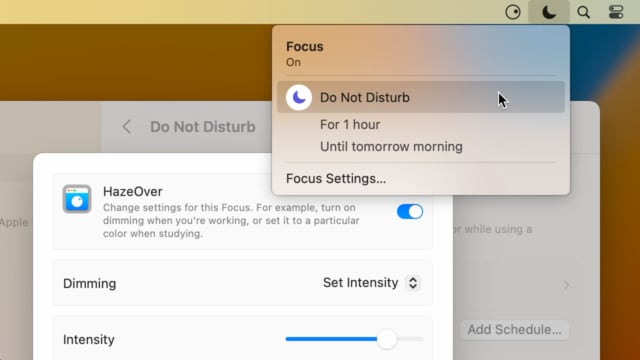
Set up a Focus Filter to toggle HazeOver dimming or set its intensity and color automatically depending on which Focus mode you have activated. For example, you could have dimming turned on when switching to a Work focus or get it set to a particular color when studying.
Read the Automation Guide for details and inspiration.
Tag et kig →
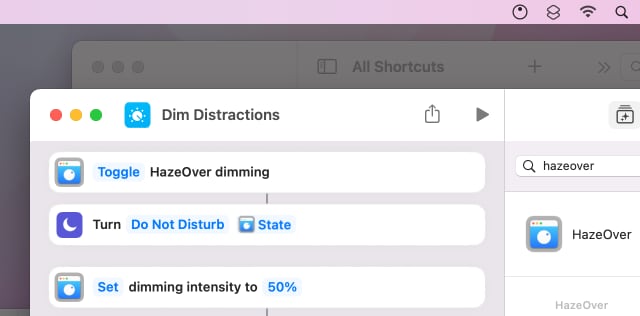
Control HazeOver dimming state and settings with Shortcuts app on macOS Monterey. Combine with other apps and settings to set up your perfect environment. For example, you can turn on HazeOver, Dark Mode, and Do Not Disturb with a single keyboard shortcut. On all macOS versions you can use AppleScript.
Read the Automation Guide for details and inspiration.
Tag et kig →
HazeOver 1.8.6 + Light/Dark Settings
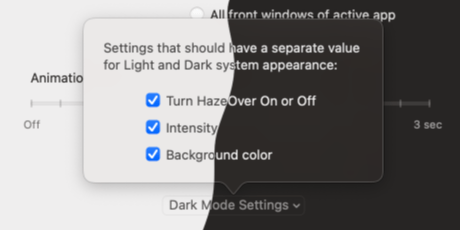
New: Dynamic settings for Light and Dark system appearance.
Dimming settings can be set to change automatically when using Auto Appearance on macOS Catalina (System Preferences > General). For example, dimming can switch on along with Dark Mode. Or have different dimming intensity and color when using the light appearance.
Such settings will be saved and applied independently for Dark and Light appearance. See HazeOver Preferences > Advanced > Dark Mode Settings.
Kundeanmeldelser: 
Baseret på 3133 nylige bedømmelser og anmeldelser fra Mac App Store verden over
A permanent addition to my desktop
This program has redefined what I view as “comfortable” on my desktop, and it has become a permanent resident on my status bar. I rarely disable it, but love the fact that I can quickly and easily do so using the taskbar icon. It does exactly what it says. Five stars.
Better is use than theory
You don’t know how nice this is until you use it. It really does make concentrating on the given window easier; and yes, you always know what window you’re on. Glad I got this, highly recommend it.
Brilliantly Simple
App that makes you go, “Where have you been all my Mac life?”
Worth the money, worth the time
This app has definitely helped with making my productive life easier. Let me tell you that it little popups are an annoyance to you, then this app will definitely help you concentrate on one thing at a time. It is now in my must-have list and should be in yours too!