


HazeOver — Distraction Dimmer™ for Mac
Turn distractions down and focus on your current task
Too many windows to manage? Typed into the wrong window? Large display? Or getting lost across multiple monitors? HazeOver is for you! This app automatically highlights the active window by dimming background windows.
Current version requires macOS Ventura 13 or later. See other versions. Compatible with macOS 27 Golden Gate. Free Trial
 Try with Setapp
How to Increase Productivity on Mac with HazeOver
- Help yourself focus on one thing at a time. Especially if you’re easily distracted.
- Spend less time managing windows. The clutter won’t bother you anymore.
No need to minimize, close, or hide windows to keep your workspace neat and tidy. - Instantly see which window is active, thanks to added contrast.
Type, paste, and hit shortcuts without second-guessing. - Got a bigger display? Then going full screen might make less sense.
HazeOver helps you avoid feeling overwhelmed by too many windows. - Multiple monitors? See which screen is active, or highlight windows on each monitor.
- Helps reduce eye strain and overall glare.
Complements Dark Mode by dimming the bright content behind. - Working at night? Lower interface brightness without sacrificing the legibility or color accuracy of the active window.
- Designed to work full-time on your Mac, meticulously optimized over the years to use very little memory and energy.
Heavy multitasking drains your energy. Webpages, emails, chat messages, and lolcats 😼 stare at you from the background — all fighting for your attention. And you only have so much of it.
You’re deep in focus. Then a window here, another there, you keep hiding and minimizing, they keep piling on… Great. Now you’re overwhelmed and off track. Take a breath, turn on HazeOver and finally concentrate on what matters.
HazeOver automatically highlights the frontmost window or app as you switch. Less important things gently fade into the background, helping you stay focused and productive.
Customize dimming intensity and animation speed to your preference — whether it’s a soft shade to guide your attention or a bold dark background for total immersion.
- The desktop is automatically revealed when used.
- Toggle shading with a keyboard shortcut or adjust intensity with a gesture.
- Use separate dimming settings for Dark and Light appearance.
- Press the Fn key to quickly turn off dimming while dragging between apps.
- Control or automate HazeOver with the Shortcuts app, Focus filters, and AppleScript.
Improve your workflow and eye comfort with HazeOver.
Does HazeOver really help? It’s been featured in







 Featured by Apple on Mac App Store

“I’ve been a HazeOver user so long that I have moments of confusion when using a Mac without it.”

“When it comes to being productive, the right tools can make all the difference. […] Try these productivity gems”

“HazeOver dims all but the top window to help you focus while working. Use it for a professional look when making screen captures and recordings.”

“By letting you automate frequent or cumbersome tasks, Shortcuts has become a productivity favorite on Mac. […] Check out these Mac favorites that work with Shortcuts”

“Take Focus further […] With the new Focus filters in macOS Ventura, apps can customize what you see based on the Focus you’ve enabled.”
News & Updates 

HazeOver 1.9.9 + macOS 27 Golden Gate
- Updated for macOS 27 Golden Gate.
- Change HazeOver settings directly from Spotlight and assign quick keys to actions.
- Fixed: the Settings window could open unexpectedly when using the new Siri app.
- Fixed: menu bar icon scrolling did not work on macOS 27, or changed intensity unintentionally.

“What HazeOver does is highlight the active window by dimming all background windows. That’s it. But it does this simple task with aplomb, and it makes a significant difference in the day-to-day usability of MacOS. Not just MacOS 26 Tahoe — all recent versions of MacOS suffer from a design that makes it difficult to distinguish, instantly, the frontmost (a.k.a. key) window from background windows. Making all background windows a little dimmer makes a notable difference.”
— John Gruber
Take a look →
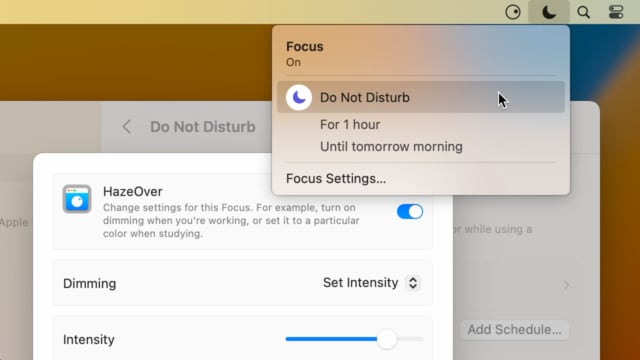
Set up a Focus Filter to toggle HazeOver dimming or set its intensity and color automatically depending on which Focus mode you have activated. For example, you could have dimming turned on when switching to a Work focus or get it set to a particular color when studying.
Read the Automation Guide for details and inspiration.
Take a look →
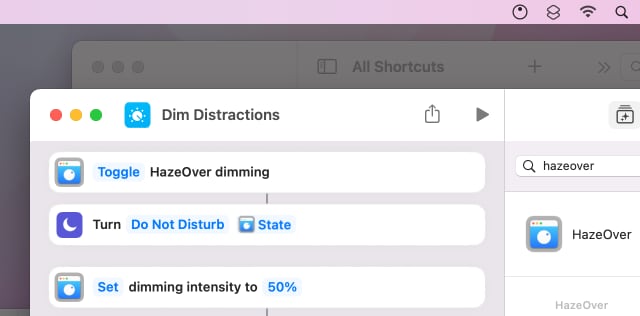
Control HazeOver dimming state and settings with Shortcuts app on macOS Monterey. Combine with other apps and settings to set up your perfect environment. For example, you can turn on HazeOver, Dark Mode, and Do Not Disturb with a single keyboard shortcut. On all macOS versions you can use AppleScript.
Read the Automation Guide for details and inspiration.
Take a look →
HazeOver 1.8.6 + Light/Dark Settings
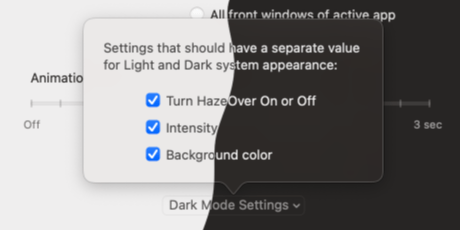
New: Dynamic settings for Light and Dark system appearance.
Dimming settings can be set to change automatically when using Auto Appearance on macOS Catalina (System Preferences > General). For example, dimming can switch on along with Dark Mode. Or have different dimming intensity and color when using the light appearance.
Such settings will be saved and applied independently for Dark and Light appearance. See HazeOver Preferences > Advanced > Dark Mode Settings.
Customer Reviews: 
Based on 3133 recent ratings and reviews from the Mac App Store worldwide
A permanent addition to my desktop
This program has redefined what I view as “comfortable” on my desktop, and it has become a permanent resident on my status bar. I rarely disable it, but love the fact that I can quickly and easily do so using the taskbar icon. It does exactly what it says. Five stars.
Better is use than theory
You don’t know how nice this is until you use it. It really does make concentrating on the given window easier; and yes, you always know what window you’re on. Glad I got this, highly recommend it.
Brilliantly Simple
App that makes you go, “Where have you been all my Mac life?”
Worth the money, worth the time
This app has definitely helped with making my productive life easier. Let me tell you that it little popups are an annoyance to you, then this app will definitely help you concentrate on one thing at a time. It is now in my must-have list and should be in yours too!