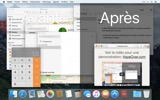
Trop de fenêtres ouvertes à gérer ? Grand écran ? Ou parfois perdu à travers vos différents écrans ? HazeOver est faite pour vous. Cette app met automatiquement en évidence la fenêtre de premier plan en atténuant les fenêtres d’arrière-plan.
La version actuelle nécessite macOS 12 Monterey ou ultérieur. Voir autres versions. Essayer avec Setapp
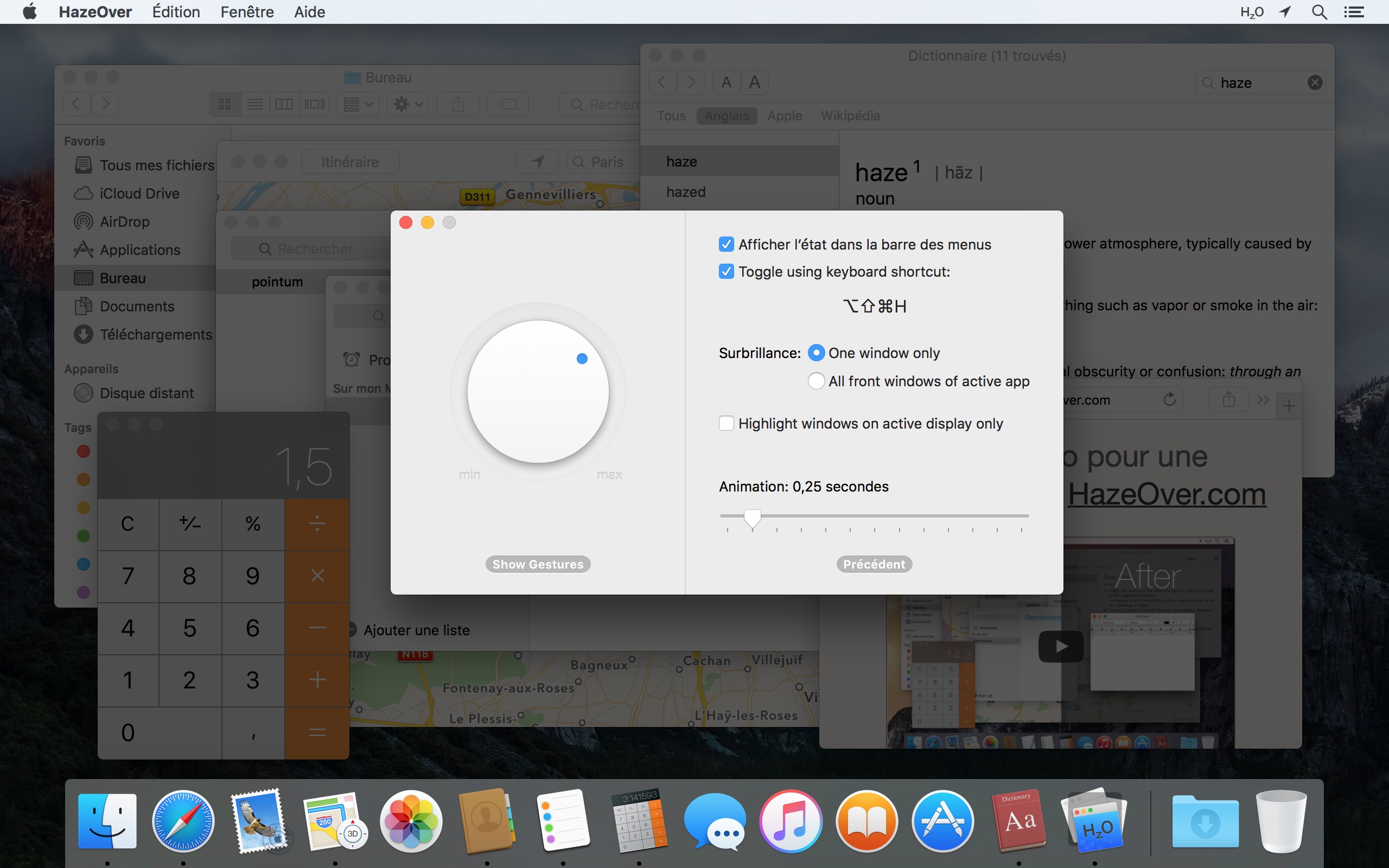
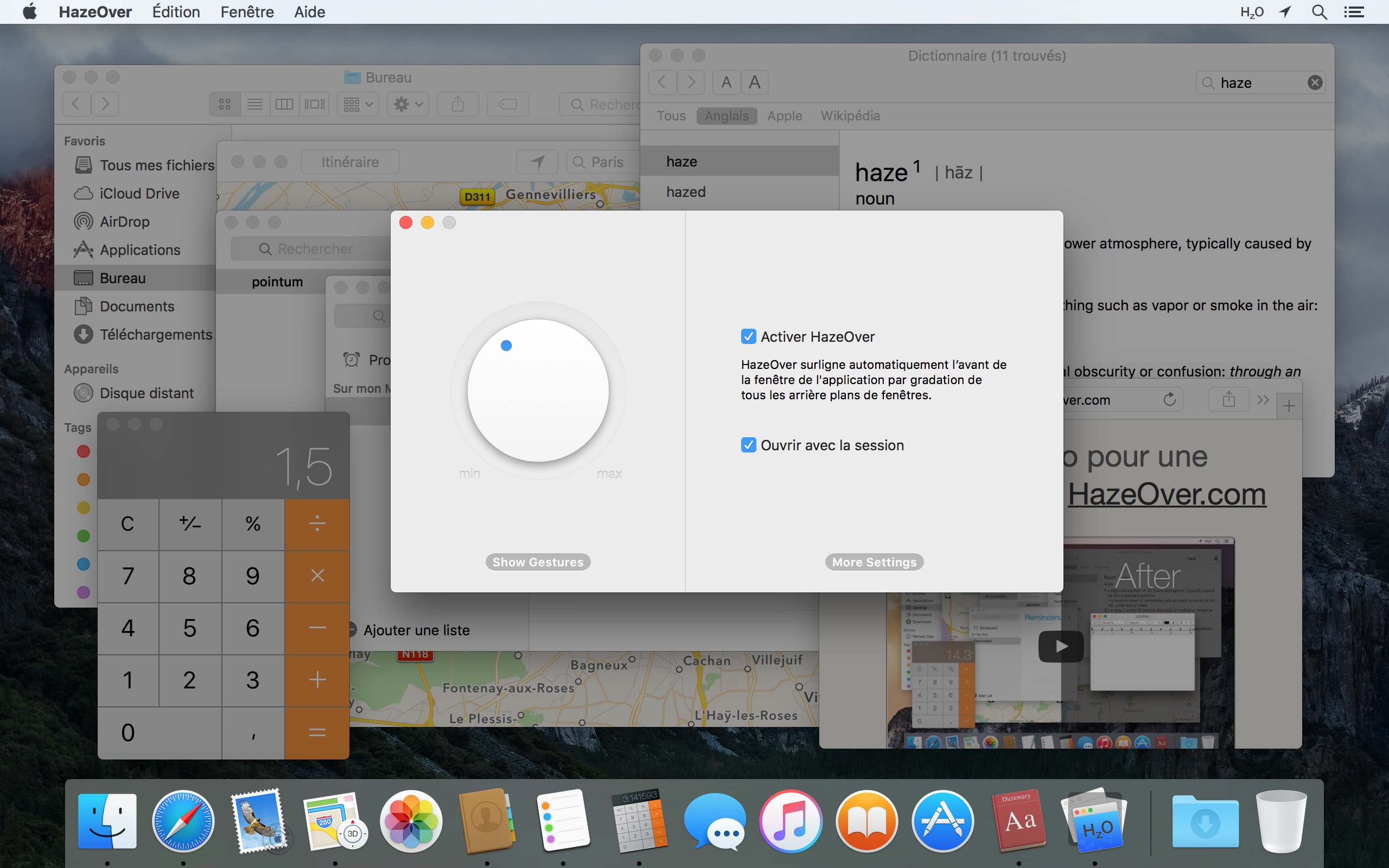
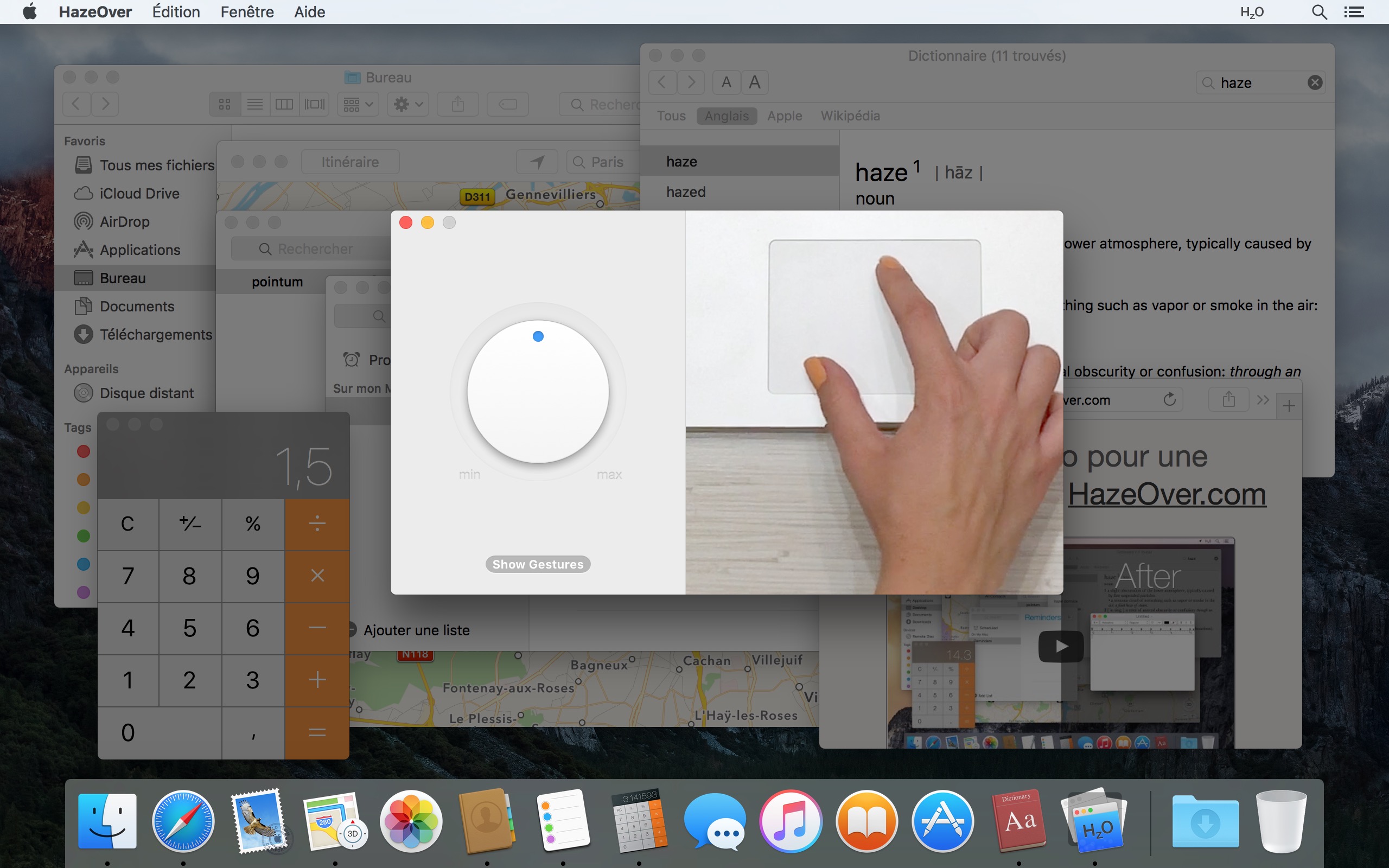
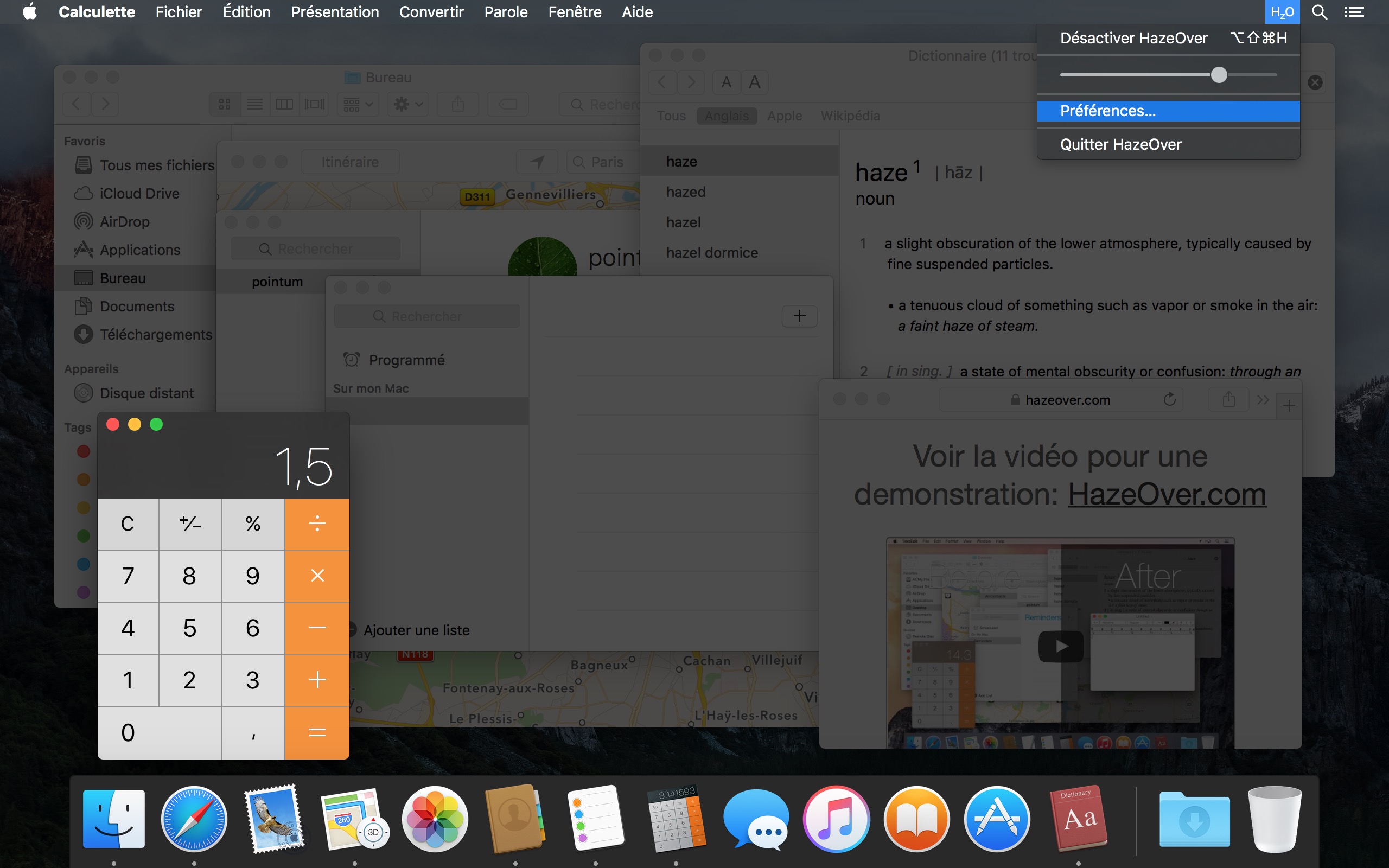
Regardez la vidéo de démonstration pour voir l’effet de fondu des fenêtres en action
Comment augmenter la productivité sur Mac avec HazeOver
- Aidez-vous à vous concentrer sur une seule chose à la fois. Automagiquement.
- Passez moins de temps à gérer les fenêtres. Le désordre ne vous dérangera plus.
Pas besoin de réduire, fermer ou masquer les fenêtres pour garder votre espace de travail propre et ordonné. - Fini de taper dans la mauvaise fenêtre à cause du faible contraste.
Sachez toujours quelle fenêtre est active. - Vous avez un écran plus grand ? Alors passer en plein écran pourrait avoir moins de sens.
HazeOver vous aide à éviter de vous sentir submergé par trop de fenêtres. - Plusieurs moniteurs ? Voyez quel écran est actif, ou mettez des fenêtres en évidence sur chaque moniteur.
- Boostez le mode sombre et réduisez l’éblouissement en arrière-plan.
- Vous travaillez la nuit ? Diminuez la luminosité de l’interface sans sacrifier la lisibilité ou la précision des couleurs de la fenêtre de premier plan.
Le multitâche intensif épuise votre énergie. Pages web, e-mails, messages de chat et lolcats 😼 vous fixent depuis l’arrière-plan, tous se battent pour votre attention. Et vous n’en avez qu’une quantité limitée.
Vous êtes en pleine concentration. Puis une fenêtre par-ci, une autre par-là, vous passez votre temps à masquer et réduire, elles s’accumulent… Parfait. Vous voilà dépassé et hors sujet. Respirez un coup, activez HazeOver et concentrez-vous enfin sur ce qui compte.
HazeOver met automatiquement en évidence la fenêtre ou l’app active pendant que vous basculez. Les choses moins importantes s’estompent doucement en arrière-plan, vous aidant à rester concentré et productif.
Personnalisez l’intensité de l’effet et la vitesse d’animation selon vos préférences, que ce soit une ombre douce pour guider votre attention ou un arrière-plan sombre audacieux pour une immersion totale.
- Le bureau est automatiquement révélé quand il est utilisé.
- Activez ou désactivez l’ombrage avec un raccourci clavier ou ajustez l’intensité avec un geste.
- Utilisez des réglages d’atténuation séparés pour l’apparence sombre et claire.
- Appuyez sur la touche fn pour désactiver rapidement l’atténuation pendant un glisser-déposer entre les apps.
- Contrôlez ou automatisez HazeOver avec l’app Raccourcis, les filtres de Concentration et AppleScript.
Prêt à améliorer votre flux de travail et le confort de vos yeux avec HazeOver ?
HazeOver aide-t-elle vraiment ? Elle a été présentée dans







Nouveautés et mises à jour 

HazeOver 1.9.7 + macOS Tahoe and Liquid Glass
- Improved compatibility with macOS Tahoe and updated look for Liquid Glass.
- Fixed: quitting unexpectedly when using a third-party menu bar manager.
- Improved screen reader support and keyboard navigation following Voluntary Product Accessibility Template® audit.
Now you can adjust HazeOver settings from Spotlight and Control Center. See the updated Automation Guide.
Tip: If you use intense dimming and the menu bar gets too dark on macOS Tahoe, then go to System Settings > Menu Bar and turn on the “Show menu bar background” option.
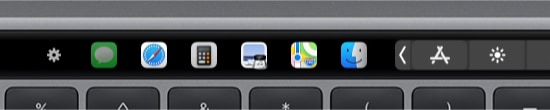
The app switcher for the Touch Bar got updated for macOS Tahoe and Liquid Glass. Now requires macOS 12, the last macOS version supported by every Mac with a Touch Bar.
Learn More →
The app for running scripts and commands with keyboard shortcuts or from the menu bar, now updated for macOS Tahoe and Liquid Glass.
Learn More →
“What HazeOver does is highlight the active window by dimming all background windows. That’s it. But it does this simple task with aplomb, and it makes a significant difference in the day-to-day usability of MacOS. Not just MacOS 26 Tahoe — all recent versions of MacOS suffer from a design that makes it difficult to distinguish, instantly, the frontmost (a.k.a. key) window from background windows. Making all background windows a little dimmer makes a notable difference.”
— John Gruber
Learn More →
HazeOver 1.9.6 + macOS Sequoia & Localization Updates

I like working with different languages. I speak English, Russian and Spanish, a bit of Japanese and can understand some German. Localizing an app is challenging but rewarding. That’s why HazeOver has supported multiple languages from the get go.
Over the years HazeOver has been localized into 33 languages with help from professional translators and regular users. But as changes are made and features are added, some text became out of date. Now the localization should be complete, including updates to the home and help pages in 24 languages.
Please let me know if you find mistakes or typos.

HazeOver Featured by Apple in App Store Stories
- What’s New in macOS Ventura — Take Focus Further
“macOS Ventura is here, bringing fresh ways to boost your productivity and creativity. Check out a few of its coolest new features—along with apps and games to get the most out of them.”
“Whether you’re working, playing, or spending time with family, setting up a Focus is a great way to establish boundaries. With the new Focus filters in macOS Ventura, apps can customize what you see based on the Focus you’ve enabled.”
- Get More Done With Shortcuts! — Manage Your Mac
“By letting you automate frequent or cumbersome tasks, Shortcuts has become a productivity favorite on Mac. […] Check out these Mac favorites that work with Shortcuts”
- Snap Screenshots Like a Pro — Highlight the important window
“HazeOver dims all but the top window to help you focus while working. Use it for a professional look when making screen captures and recordings.”

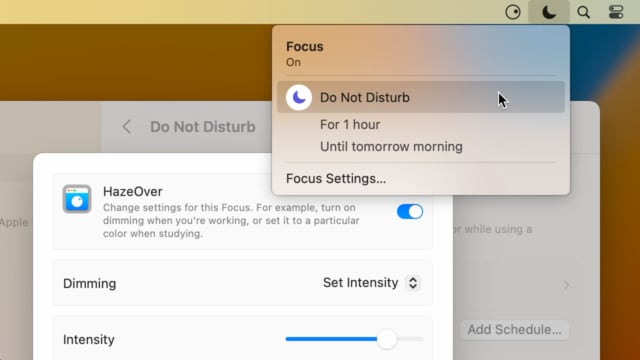
Set up a Focus Filter to toggle HazeOver dimming or set its intensity and color automatically depending on which Focus mode you have activated. For example, you could have dimming turned on when switching to a Work focus or get it set to a particular color when studying.
Read the Automation Guide for details and inspiration.
Learn More →
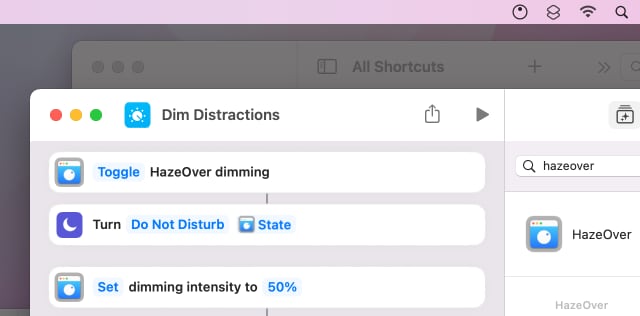
Control HazeOver dimming state and settings with Shortcuts app on macOS Monterey. Combine with other apps and settings to set up your perfect environment. For example, you can turn on HazeOver, Dark Mode, and Do Not Disturb with a single keyboard shortcut. On all macOS versions you can use AppleScript.
Read the Automation Guide for details and inspiration.
Learn More →
HazeOver 1.8.6 + Light/Dark Settings
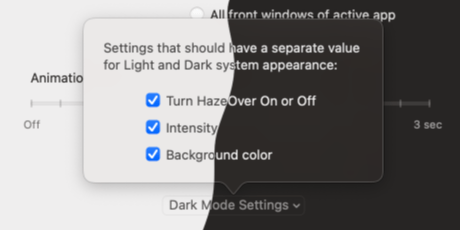
New: Dynamic settings for Light and Dark system appearance.
Dimming settings can be set to change automatically when using Auto Appearance on macOS Catalina (System Preferences > General). For example, dimming can switch on along with Dark Mode. Or have different dimming intensity and color when using the light appearance.
Such settings will be saved and applied independently for Dark and Light appearance. See HazeOver Preferences > Advanced > Dark Mode Settings.
Avis des utilisateurs: 
Basé sur 3064 notes et avis récents du Mac App Store dans le monde
A permanent addition to my desktop
This program has redefined what I view as “comfortable” on my desktop, and it has become a permanent resident on my status bar. I rarely disable it, but love the fact that I can quickly and easily do so using the taskbar icon. It does exactly what it says. Five stars.
Better is use than theory
You don’t know how nice this is until you use it. It really does make concentrating on the given window easier; and yes, you always know what window you’re on. Glad I got this, highly recommend it.
Brilliantly Simple
App that makes you go, “Where have you been all my Mac life?”
Worth the money, worth the time
This app has definitely helped with making my productive life easier. Let me tell you that it little popups are an annoyance to you, then this app will definitely help you concentrate on one thing at a time. It is now in my must-have list and should be in yours too!